
The Events page on the new Orewa Bridge Club website is designed to make it easier to see what is coming up, find the events that interest you, and add useful details to your own calendar if you wish.
It is not compulsory. It is not replacing the printed programme book. Nobody is coming round to confiscate your notebook, your carefully annotated programme, or the back of the envelope you have been using since 1997.
It is simply an extra option for members who want a convenient way to check events on a phone, tablet or computer.
At a glance
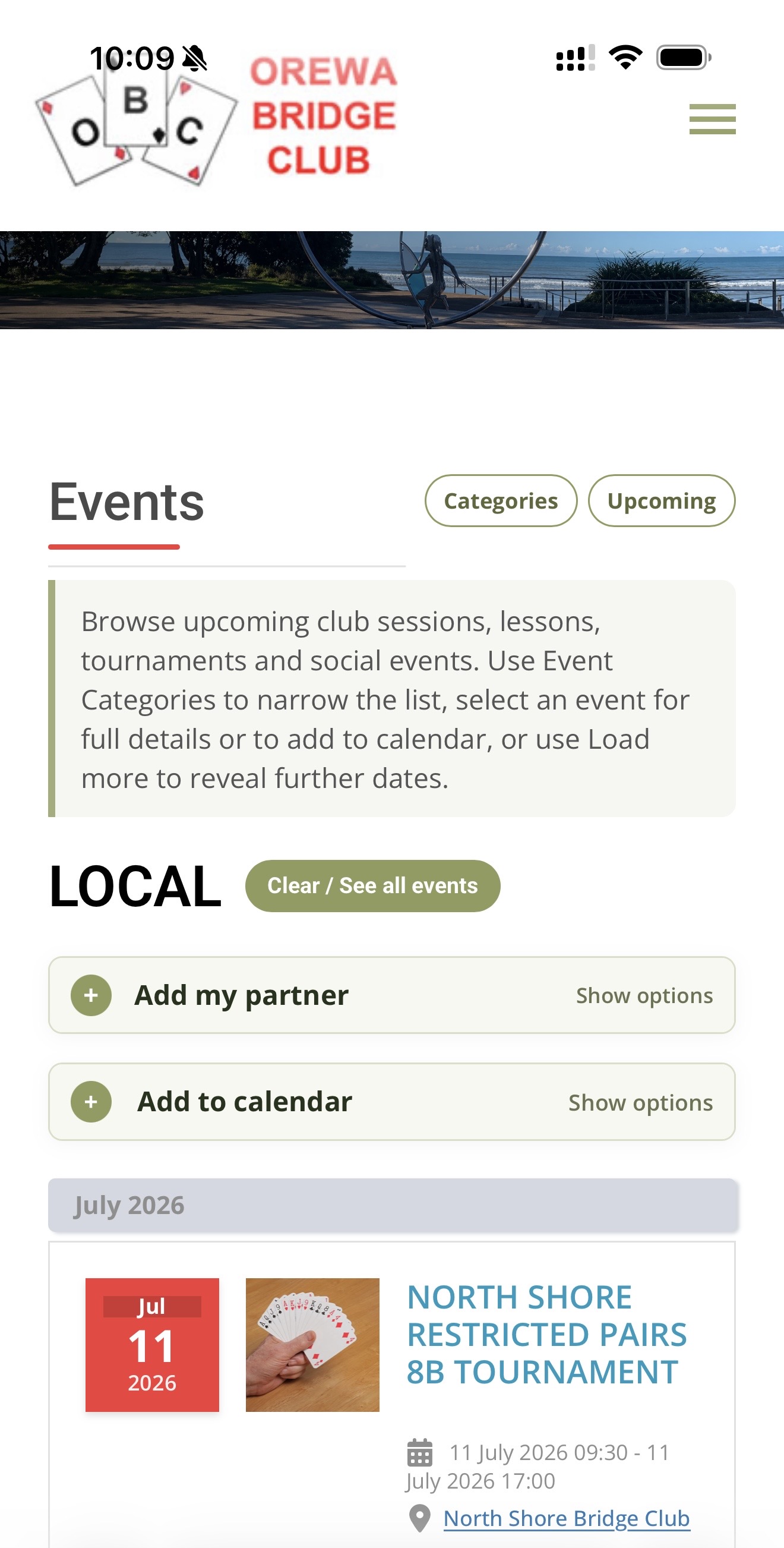
Check events on your phone, tablet or computer.
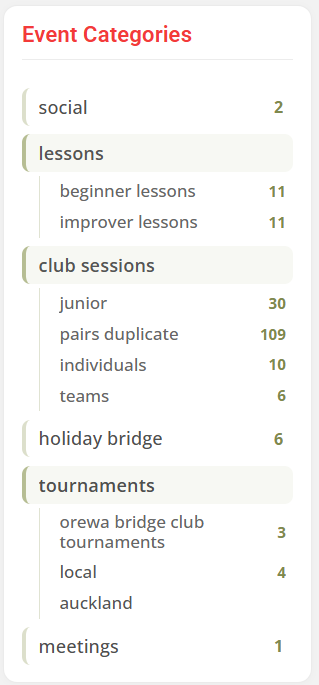
Use categories to narrow the list.
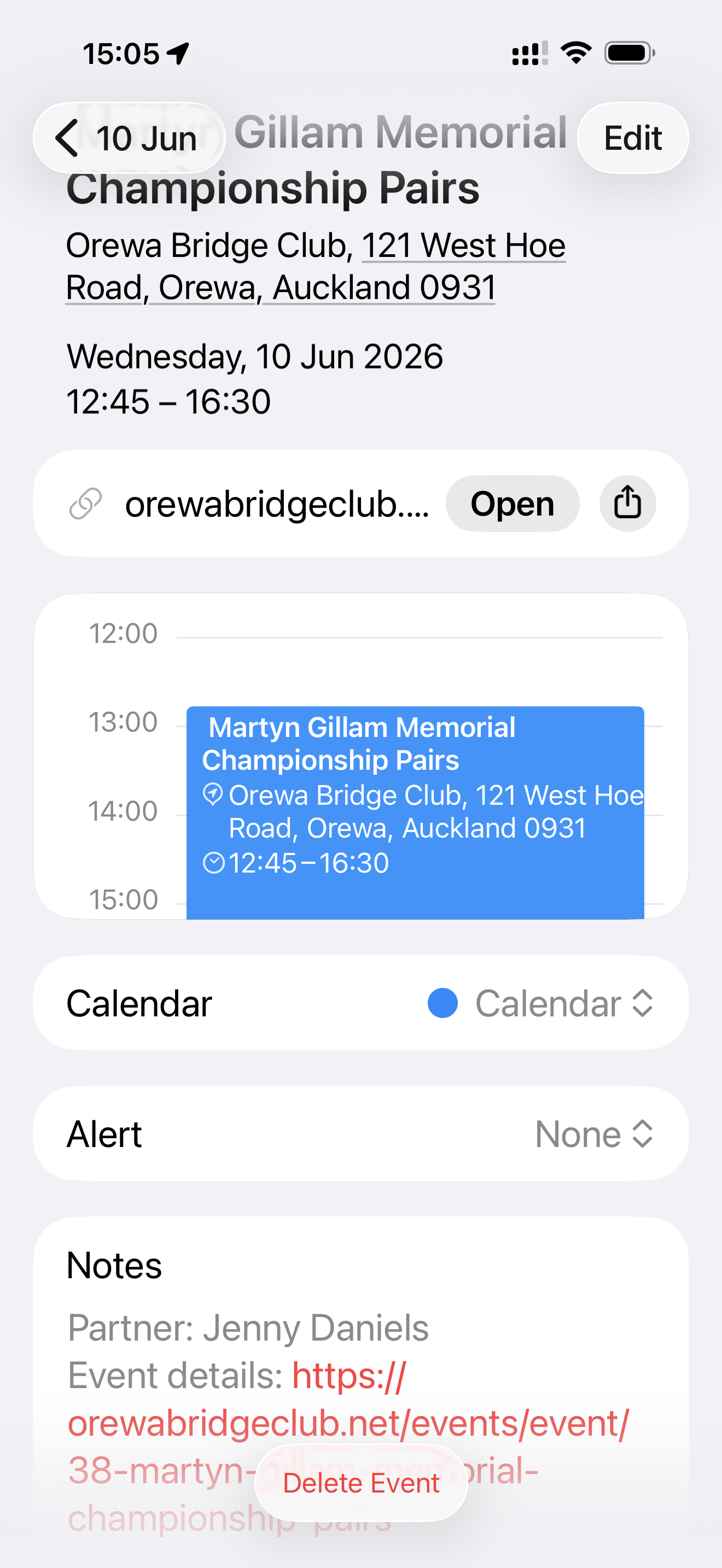
Add partner notes and calendar entries.
Finding events
Go to Events from the main menu. The main list shows upcoming club sessions, lessons, tournaments and social events. Each event has a date, title, time, location and a Find out more button.
Select Find out more to open the individual event page and see the full details for that event.
If you cannot see the event you are looking for, use Load more at the bottom of the page to show later dates.
Browsing by category
You can use Event Categories to narrow the list. For example, you can look for club sessions, tournaments, lessons, junior events or social events.
On a phone, the event list appears first. The categories and upcoming-event links sit further down the page, so they do not get in the way of the main information.
Use the quick links near the Events heading if you want to jump down to Categories or Upcoming without scrolling. If you have filtered the list and want to return to everything, use Clear / See all events.
Adding private partner notes
The Events page includes an optional Add my partner feature. This lets you make a private note of who you are playing with.
For many events, adding a partner to the first event in a series will carry that name through the later sessions in that series. You can still open an individual event and change the partner for that session if needed.
Individuals events: partner notes are added session by session, because those events are designed for changing partners.
Teams events: the field is labelled Team captain instead of partner.
Privacy: partner notes are stored in your own browser and device. They are not sent to the club and other members cannot see them.
This feature is useful on its own, but it is even more useful if you also add the event to your calendar. If you enter your partner’s name first, then select Add to your calendar, the partner name is added to the calendar entry as a note.
That means your calendar can show not only where you are meant to be, but also who you are meant to be playing with.
Adding events to your calendar
On an event page, select Add to your calendar if you would like to add the event to your own calendar app.
This can work with common calendar apps such as Apple Calendar, Google Calendar and Outlook. Your phone or computer may ask you to confirm the import, save the event, or choose a calendar. Follow the prompts. The exact wording will depend on your device and calendar app.
Adding events to your calendar is especially useful for tournaments, lessons, social events, and anything at another club. If the event includes a map link, you can use that from the event page to open directions on your phone or computer.
The event page can help with three useful questions: when am I meant to be there, who am I meant to be with, and how do I get there?
Adding events to your calendar is optional. If your printed book is doing a perfectly good job, you may continue your long and happy relationship with it.
Looking after your notes
Because partner notes are stored on your own browser and device, there are a few practical things to remember.
If you use a different phone, tablet or computer, your notes will not automatically appear there.
If you clear your browser data, your notes may be removed.
If you use private or incognito browsing, the feature may not save properly.
If you rely on these notes, use Print / Save PDF, Copy notes, Save backup file, or add the event to your own calendar after entering your partner’s name.
Think of it as the digital equivalent of writing in your book: useful, but still worth looking after.
Printing or saving your partner notes
Inside the Add my partner panel, you can print or save your partner notes.
Use Print / Save PDF if you want a simple list of your saved notes. On many phones and computers, the print screen will also let you save as a PDF.
Use Copy notes if you want to paste the information into an email, document or notes app.
There is also a backup option for members who are comfortable saving and restoring files. If that sentence makes you want to lie down, use Print / Save PDF instead.
A final word
The Events page is there to make things easier, not to make anyone change how they like to organise themselves.
Use as much or as little of it as suits you. Check upcoming events, filter by category, open an event for more detail, add partner notes, send events to your calendar, use map links for directions, or simply keep using your printed book.
Both systems can live peacefully side by side, which is more than can always be said for bridge partnerships.